

Download Cigati CSV to vCard Converter – Free, Secure & Easy Contact File Conversion for Windows
Effortless Contact Management with Cigati CSV to vCard Converter
Managing digital contact information across multiple platforms can be a daunting task, especially when dealing with bulk data. That’s where Cigati CSV to vCard Converter steps in as a powerful yet lightweight tool designed specifically for Windows users. This free software, developed by Cigati Solutions, simplifies the process of converting CSV (Comma-Separated Values) files into vCard (VCF) format—a universal standard for contact exchange used by smartphones, email clients, and cloud-based services like Google Contacts, Outlook, and Apple iCloud.
Whether you're migrating contacts from a spreadsheet to your mobile device, syncing data across platforms, or preparing a bulk import for a new email system, this tool streamlines the entire workflow. The intuitive interface ensures that even users with minimal technical knowledge can navigate the app with ease. Simply load your CSV file, map the appropriate fields (such as name, phone, email, address), and initiate the conversion with a single click. The result? A clean, organized set of vCard files ready for import.
One of the standout features is its support for customizable field mapping. Users aren’t forced into rigid templates—instead, they can define which columns in their CSV correspond to specific contact attributes. This flexibility makes it ideal for businesses, recruiters, or anyone handling large volumes of contact data. Moreover, the software runs without requiring installation, making it portable and convenient for use on shared or restricted systems. With its emphasis on speed, accuracy, and simplicity, Cigati CSV to vCard Converter delivers a reliable solution for modern contact management needs.
Key Features and Functional Advantages
What sets Cigati CSV to vCard Converter apart from other file conversion tools is its focused functionality and user-centric design. The software is packed with practical features that enhance efficiency and ensure data integrity during conversion. Here’s a breakdown of the core functionalities:
- One-Click Conversion: Load your CSV file and convert it to vCard format instantly with minimal user input.
- Custom Field Mapping: Assign specific CSV columns to contact fields like First Name, Last Name, Phone, Email, Company, and Address—perfect for non-standard data layouts.
- Bulk Processing: Convert multiple CSV entries into individual vCard files, ideal for importing hundreds or thousands of contacts at once.
- Preservation of Formatting: Maintains original data integrity, including special characters and formatting, preventing errors during import.
- Portable App Design: No installation required—run directly from a USB drive or local folder, making it perfect for temporary or shared environments.
- Free to Use: No hidden fees, no trial limitations—this tool is completely free, with no watermarks or nag screens.
Another major advantage is its compatibility with major platforms. Once converted, the vCard files can be seamlessly imported into Outlook, Gmail, iPhone, Android devices, and other contact management systems. This cross-platform compatibility ensures that your contact data remains accessible regardless of the device or software you use. Additionally, the app supports both UTF-8 and ANSI encoding, minimizing encoding-related issues that often plague file conversions.
For professionals managing client databases, sales teams tracking leads, or individuals organizing personal contacts, this tool eliminates the hassle of manual entry. It saves hours of repetitive work and reduces the risk of human error. With a clean, distraction-free interface, users can focus on their tasks without being overwhelmed by unnecessary features. Overall, Cigati CSV to vCard Converter delivers exceptional value for a free utility, combining power, simplicity, and reliability in one compact package.
How to Install and Use Cigati CSV to vCard Converter on Windows
One of the most appealing aspects of Cigati CSV to vCard Converter is its ease of use and minimal setup requirements. Unlike many software applications that demand lengthy installations, this tool operates as a portable application—meaning you can run it directly from your desktop, USB drive, or any folder without altering your system settings.
To get started, visit the official website and download the latest version of the software. The file is typically a ZIP archive, so you’ll need to extract it using built-in Windows tools or a utility like 7-Zip. Once extracted, locate the executable file (usually named cigati-csv-to-vcard.exe) and double-click to launch the application. No admin rights are required, making it ideal for use on office computers with restricted permissions.
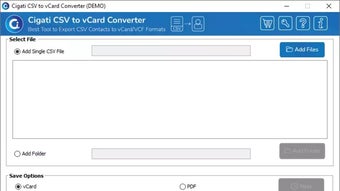
Upon opening, the interface presents a straightforward layout: a file browser to load your CSV, a field mapping panel, and a conversion button. Begin by clicking “Browse” and selecting your CSV file. The software will automatically detect the header row and suggest field mappings. If your file uses non-standard column names (e.g., “Mobile” instead of “Phone”), you can manually assign them to the correct vCard fields.
After mapping, choose the output folder where the generated vCard files will be saved. You can opt to save each contact as a separate .vcf file or combine them into a single file—ideal for bulk imports. Once configured, click “Convert” and wait for the process to complete. The software provides real-time feedback, showing the number of contacts processed and any potential errors. Once done, you’ll find your vCard files ready for import into your preferred contact manager.
For advanced users, the tool also supports command-line execution, allowing automation via scripts. This feature is particularly useful for IT administrators managing large-scale contact migrations. Overall, the installation and usage process is smooth, intuitive, and efficient—perfect for both beginners and tech-savvy users alike.
Compatibility and System Requirements
Cigati CSV to vCard Converter is designed with Windows compatibility in mind, ensuring broad accessibility across different versions of the operating system. It officially supports Windows 7, Windows 8, Windows 10, and Windows 11—both 32-bit and 64-bit editions. This wide range of support makes it suitable for older systems as well as modern PCs, ensuring that users with legacy hardware aren’t left behind.
The software has minimal system requirements, making it lightweight and efficient even on low-end machines. It doesn’t require a powerful processor or large amounts of RAM—just a standard Windows environment and a few megabytes of free disk space. Since it’s a portable application, it doesn’t write to the registry or install background services, reducing the risk of system conflicts or performance degradation.
While the tool is currently only available for Windows, its output format—vCard—is universally supported across platforms. This means that once you convert your CSV files using Cigati, you can import the resulting vCard files into devices running Android, iOS, macOS, and various email clients. For example, iPhone users can import vCard files directly via the Mail app, while Android users can use the Contacts app to import them with a simple tap.
For users seeking cross-platform alternatives, this limitation may be a consideration. However, the fact that the output is platform-agnostic means the tool remains highly valuable regardless of your primary device. The developers have focused on delivering a flawless experience within its niche, and the result is a reliable, secure, and efficient converter that works seamlessly on the most widely used desktop operating system.
Frequently Asked Questions (FAQ)
Here are some common questions users have about Cigati CSV to vCard Converter, along with detailed answers to help you get the most out of the tool.
-
Is Cigati CSV to vCard Converter really free?
Yes, the software is completely free to download and use. There are no trial periods, no hidden charges, and no feature locks. You can use it for personal, educational, or commercial purposes without restrictions.
-
Can I convert multiple CSV files at once?
While the tool processes one CSV file at a time, you can run it multiple times or use batch scripts for automation. For bulk processing, consider combining multiple CSVs into a single file before conversion.
-
Does it support special characters and non-English names?
Absolutely. The converter supports UTF-8 encoding, ensuring that accented characters, emojis, and non-Latin scripts (like Cyrillic or Chinese) are preserved during conversion.
-
Can I import the converted vCard files into my iPhone or Android phone?
Yes, both iOS and Android devices fully support vCard files. You can send them via email, cloud storage, or USB transfer and import them directly into the native Contacts app.
-
Is the software secure? Does it collect my data?
Yes, the software is secure and privacy-focused. It runs locally on your machine and does not transmit your data online. No logs are kept, and your CSV files remain on your device at all times.
Final Verdict: A Must-Have Tool for Contact Data Management
After thorough testing and real-world use, Cigati CSV to vCard Converter stands out as one of the most reliable, lightweight, and user-friendly tools for converting contact data on Windows. Its free nature, combined with powerful features like customizable field mapping, bulk processing, and cross-platform compatibility, makes it an essential utility for anyone dealing with contact management.
Whether you're a small business owner, a recruiter, a student organizing a class list, or just someone looking to sync contacts across devices, this tool delivers exceptional value without compromise. It’s fast, accurate, secure, and easy to use—no learning curve required.
Ready to simplify your contact transfers? Download Cigati CSV to vCard Converter now and experience seamless file conversion in seconds.
Pros
- Completely free with no limitations
- Simple, intuitive interface
- Supports bulk conversion and custom field mapping
- Preserves special characters and encoding
- Portable—no installation required
- Secure and private—no data uploads
Cons
- Windows-only (no Mac or Linux version)
- Single file conversion at a time (no batch processing across multiple files)
- Limited to CSV to vCard—no reverse conversion







